Google Drive Integration
TurboDocx connects to your Google Drive account through Google's own file picker, so you can import a Google Doc, Google Slides file, or Office document as a template, and export a generated deliverable straight into a Drive folder. Google Drive import and export are available on TurboDocx plans that include the integration.
Prerequisites
- A Google account with access to the files or folders you want to import from or export to.
- Google Drive enabled on your TurboDocx plan. If it isn't, clicking an Import or Export to Google Drive option opens an upgrade prompt instead of the file picker.
- An organization admin hasn't hidden Google Drive from the interface in Tenant Settings.
Importing a template from Google Drive
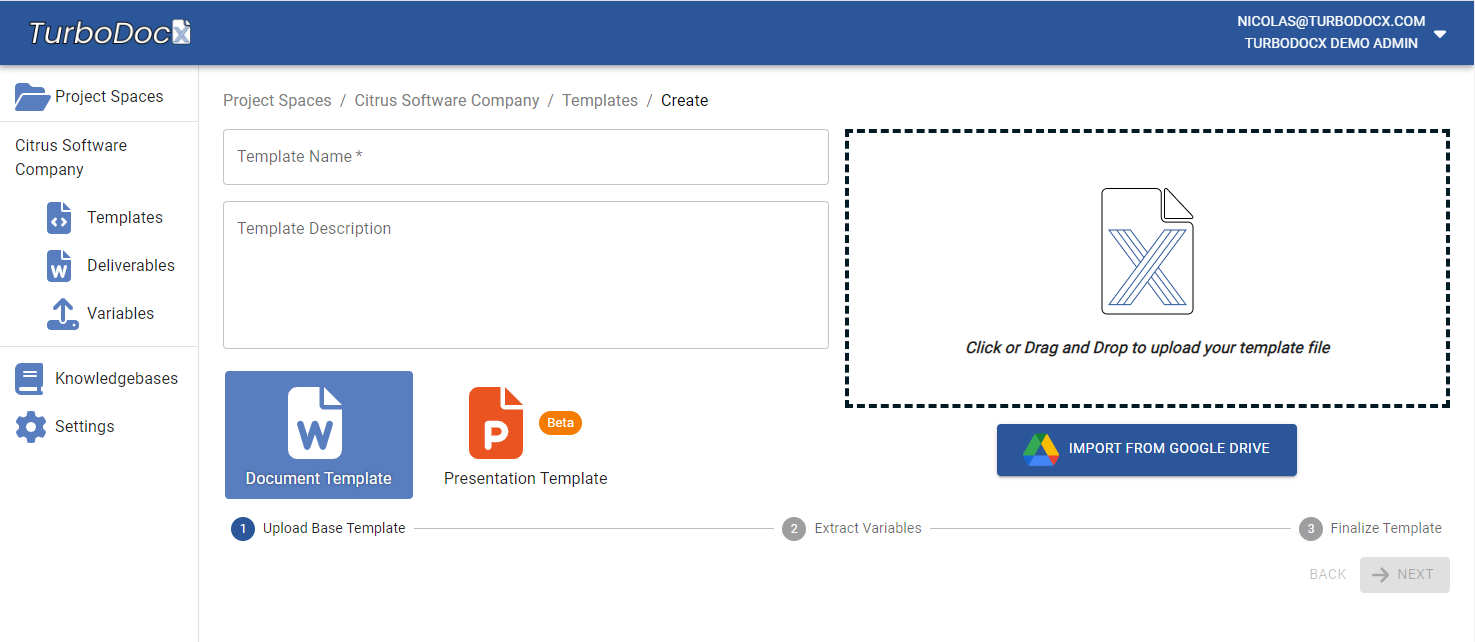
- From template creation, choose the option to import from Google Drive.
- The first time you do this, Google asks you to sign in and grant TurboDocx access to your Drive. TurboDocx only requests this access when you actually use the picker.
- Google's file picker opens, showing files in your Drive. You can select a Google Doc or a
.docxfile; if your organization has PowerPoint template support enabled, Google Slides and.pptxfiles are also selectable. - Pick a file. Google Docs and Google Slides are converted to
.docxand.pptxautomatically as they're imported; Word and PowerPoint files come in as-is. - The imported file opens in TurboDocx's template editor, ready for you to add variables and finish setting it up.
Exporting a deliverable to Google Drive
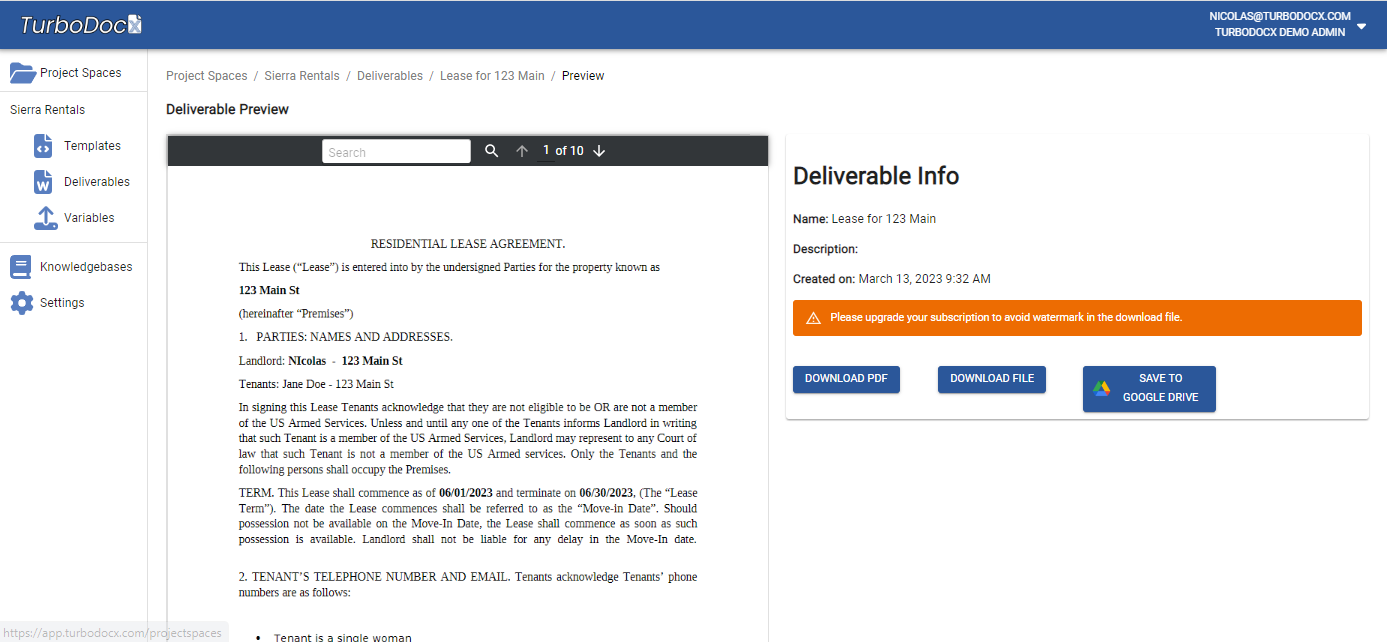
- After generating a deliverable, choose the option to export it to Google Drive.
- Grant Drive access if you haven't already. The picker opens in folder-selection mode instead of file-selection mode.
- Choose the destination folder in your Drive.
- TurboDocx uploads the deliverable into that folder and opens the folder in a new browser tab so you can confirm it arrived.
Troubleshooting
I don't see the file I'm looking for in the picker.
Only Google Docs, Google Slides, .docx, and .pptx files are shown, and only from your own Drive. Other file types, and files that live only in a Shared Drive, won't appear in the picker today.
Nothing happens after I close the Google picker. If you cancel the picker without selecting a file (or folder, when exporting), TurboDocx treats it as canceled and doesn't import or upload anything. Click the button again to retry.
The Google Drive option opens an upgrade prompt instead of the picker. Google Drive import and export are gated by your TurboDocx plan. The prompt means your organization's current plan doesn't include the integration.
An admin can't find the Google Drive option anywhere in the app. Check Tenant Settings. An admin can hide Google Drive from the interface even when it's enabled on the plan, separately from whether the plan includes it.
FAQ
Which file types can I import?
Google Docs and .docx files always. Google Slides and .pptx files too, if your organization has PowerPoint (presentation) template support turned on.
Does TurboDocx store my Google password? No. Sign-in happens through Google's own consent screen. TurboDocx receives a temporary access token to read or write the files you pick, never your Google credentials.
Can I import from or export to a Shared Drive? Not currently. Import and export both work against your personal Drive.
Where do exported documents land? In whichever folder you choose in the picker at export time. TurboDocx doesn't create or reuse a default folder for you, you pick the destination every time.